

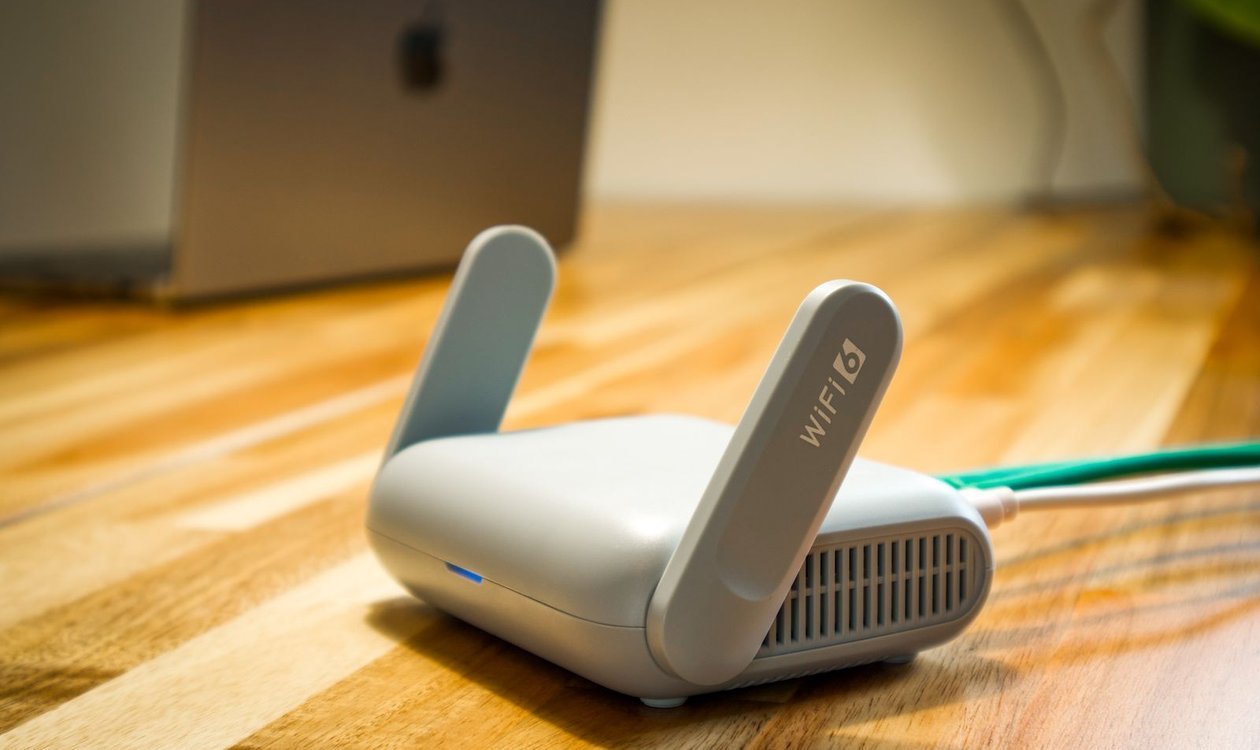
Few things are more frustrating than paying for a fast broadband plan and still watching a video buffer in the next room. Before you blame your provider or buy new equipment, take heart: learning how to make your wifi faster usually costs nothing. Most home Wi-Fi problems come down to where the router sits, which settings it uses, and how many devices are fighting over it. Work through the ten fixes below in order — starting with a quick test, so you can measure the improvement.
Step Zero: Test Your Speed So You Know Your Starting Point
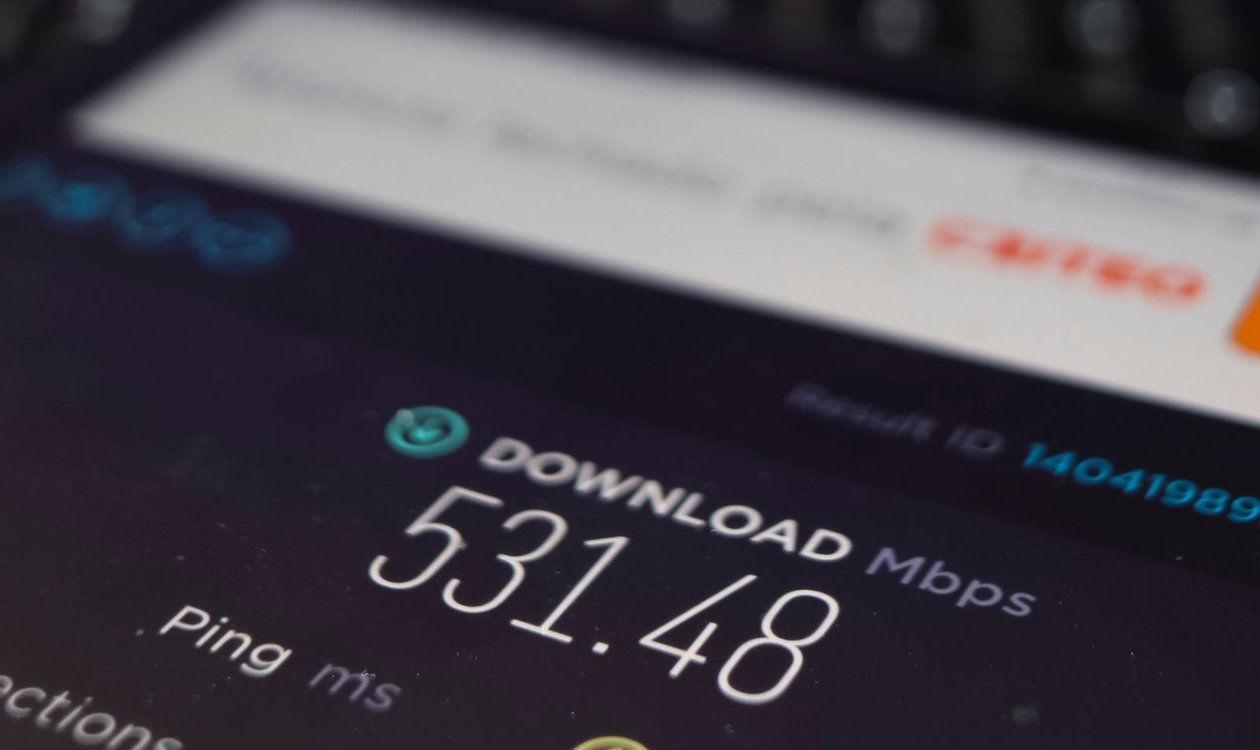
Run a free speed test twice: once standing next to the router, and once in the room where the internet feels slowest. You will see three numbers. Download speed (in Mbps) is how fast data reaches you — it matters for streaming and loading pages. Upload speed is the reverse, and matters for video calls and sending files. Ping is the delay in milliseconds; lower is better, and it is what makes calls and games feel responsive or laggy.
Compare the results with your plan’s promised speed. If the speed is fine next to the router but collapses two rooms away, your connection is healthy and the Wi-Fi signal is the problem — exactly what most of this guide fixes. The FCC’s home network tips give the same advice: test first, then troubleshoot.
Fix 1: Restart Your Modem and Router — Properly
Routers are small computers, and like any computer they get sluggish after months of non-stop running. A proper restart clears that out. Unplug both the modem and the router (or your combined box), wait a full 30 seconds, then plug the modem back in first. Give it two or three minutes to fully connect, then plug in the router and wait another couple of minutes. A ten-second unplug is not enough — the pause is what lets the equipment fully reset and reconnect cleanly.
Fix 2: Put the Router in the Right Place
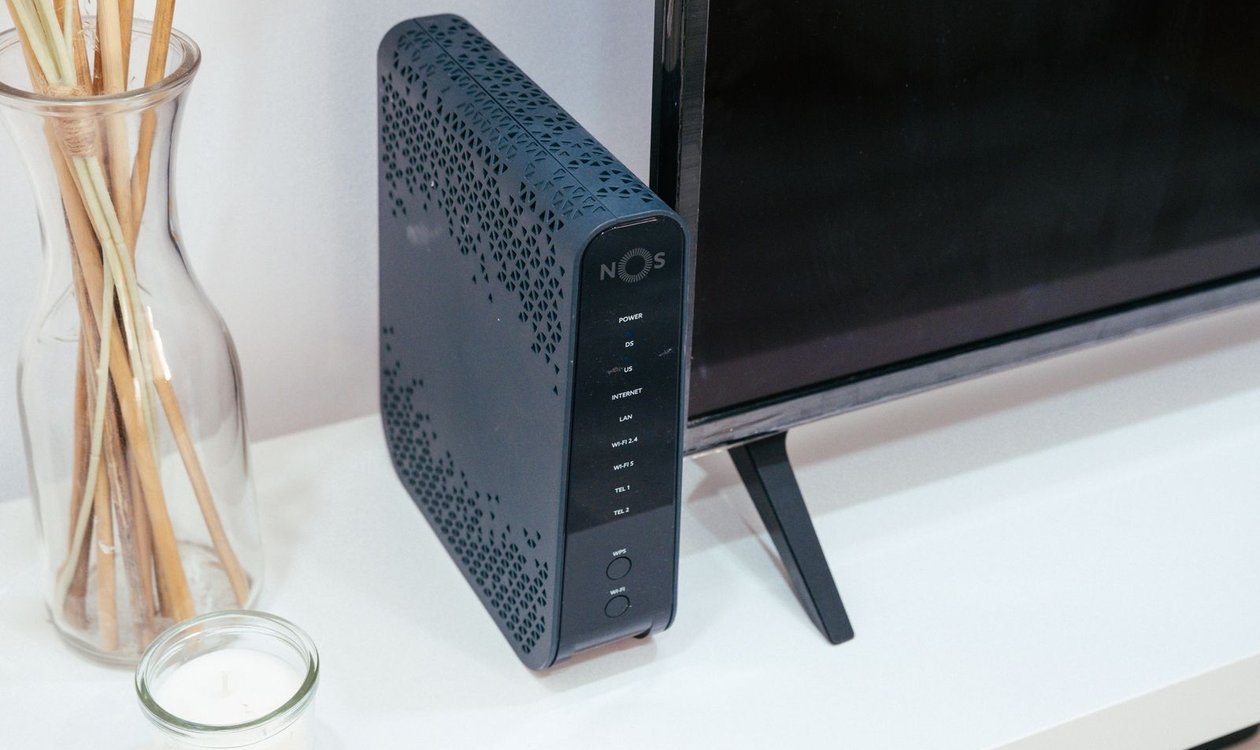
Placement is the single biggest factor in home Wi-Fi quality, and it is completely free to fix. Wi-Fi signals spread outwards and downwards from the router and are blocked or weakened by thick walls, metal, water, and other electronics. Aim for a spot that is:
- Central — as close to the middle of your home as possible, not in a corner by the front door where the line comes in.
- Raised — on a shelf or table, not on the floor or inside a closed cabinet.
- In the open — not hidden behind the TV, inside a metal stand, or next to a fish tank (water absorbs the signal surprisingly well).
- Away from interference — microwaves, baby monitors, and cordless phone bases all compete with Wi-Fi, especially on the 2.4 GHz band.
A stronger signal helps more than your internet, too: a phone straining to hold a weak connection burns its battery faster — our guide on how to make your phone battery last longer explains why.
How to Make Your Wi-Fi Faster: Choose the Right Band and a Quieter Channel
Most modern routers broadcast two networks. The 2.4 GHz band travels further and passes through walls better, but it is slower and more crowded. The 5 GHz band is much faster but covers a shorter range. A simple rule: use 5 GHz for devices in the same room or the next one over — laptops, TVs, games consoles — and 2.4 GHz for devices far from the router or smart-home gadgets that sip data slowly.
Crowding matters as well. If you live in an apartment building, your neighbours’ routers may all be shouting on the same channel as yours. In your router’s settings (or a free Wi-Fi analyser app), look at which channels are busiest and switch yours to a quieter one. On 2.4 GHz, channels 1, 6, and 11 are the only ones that do not overlap each other, so pick whichever is least used nearby; many routers also have an “Auto” setting that handles this well.
Fix 5 and 6: Update the Firmware and Lock the Door
Router firmware updates fix bugs, patch security holes, and sometimes genuinely improve performance — yet most routers run ancient software for years. Log in to your router’s admin page or app and check for an update; many models can update automatically if you switch the option on.
While you are in the settings, secure the network. Use WPA2 or WPA3 security, replace the default admin password (the one printed on the sticker is widely known for each model), and set a strong, unique Wi-Fi password. This is not just about privacy: anyone who has guessed or kept your old password is sharing your bandwidth. A guest network keeps visitors’ devices separate and makes changing access easy.
Fix 7: Stop Bandwidth Hogs From Eating Everything
Sometimes the Wi-Fi is fine — it is just busy. Cloud backups, game downloads, and 4K streams on several TVs can saturate a connection. Schedule big downloads and backups overnight, lower streaming quality on screens that do not need 4K, and check for a stuck cloud sync quietly uploading in the background. If your router offers Quality of Service (QoS), switch it on to prioritise calls and gaming over bulk downloads.
How to Make Your Wi-Fi Faster in Hard-to-Cover Homes: Mesh Systems and Extenders
If your home is large, has thick walls, or has a room the signal simply cannot reach, no setting will fix physics. A mesh system — two or three matching units placed around the home — creates one seamless network and is usually the best upgrade for bigger houses. A cheaper extender rebroadcasts the signal from halfway to the dead zone; it helps, but often at reduced speed. Start with placement (Fix 2) before spending: mesh works best when the main unit is already central.
Fix 9: Plug In the Devices That Matter Most
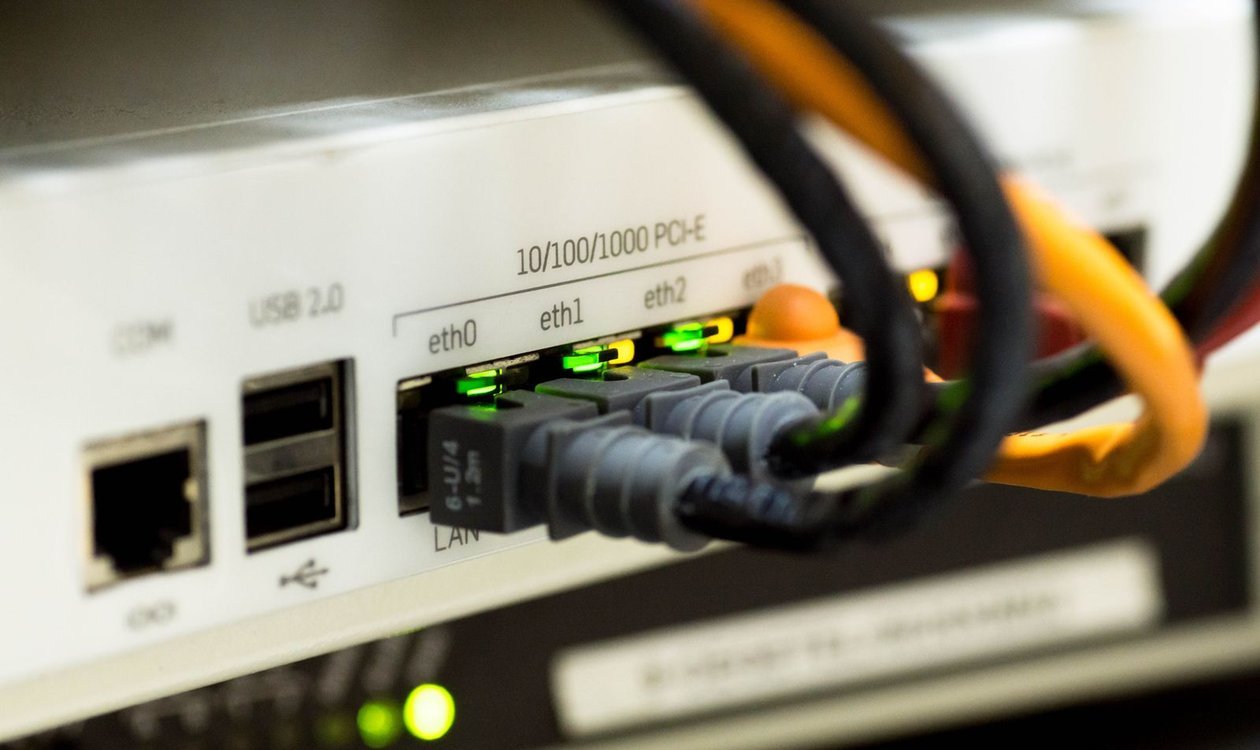
Wi-Fi is convenient, but a cable is still faster and steadier. For a work computer, streaming TV, or games console near the router, run an Ethernet cable and take that device off the wireless network entirely. It gets the most reliable connection in the house, and everything else gains a little Wi-Fi breathing room.
Fix 10: Know When It’s the Plan — or the Router’s Age
If speeds are still far below what you pay for after every fix — even next to the router with a cable plugged in — the problem is upstream: call your provider and ask them to check the line. Also check the router’s age: models over about five years old may not support modern standards or your plan’s full speed, and providers often supply a newer one free if you ask. If everything else is fast but one phone still crawls, the phone may be the bottleneck — see our guide on how to speed up a slow Android phone.
Frequently Asked Questions
Does restarting the router really make Wi-Fi faster?
Often, yes. A proper restart (30 seconds unplugged, modem first, then router) clears memory, drops stuck connections, and lets the router pick fresher channels — and it is the first thing any provider will ask you to try anyway.
Should I use 2.4 GHz or 5 GHz?
Use 5 GHz for speed-hungry devices near the router — it is faster and less crowded. Use 2.4 GHz for devices in far rooms or on other floors, since it travels further and gets through walls better, even though its top speed is lower.
How do I know if I need a mesh system?
If your speed test is fast near the router but poor in one or two specific rooms, and moving the router to a central, raised spot does not fix it, your home is simply hard for one router to cover. That is exactly the problem mesh systems are built for.
Conclusion
Knowing how to make your wifi faster is mostly about removing obstacles — physical ones like walls and cupboards, and digital ones like crowded channels, old firmware, and bandwidth hogs. Test, work through the fixes in order, and test again. In most homes the free fixes deliver the biggest jump; save the mesh system or new plan for when you have proof the problem is coverage or the connection itself.
