

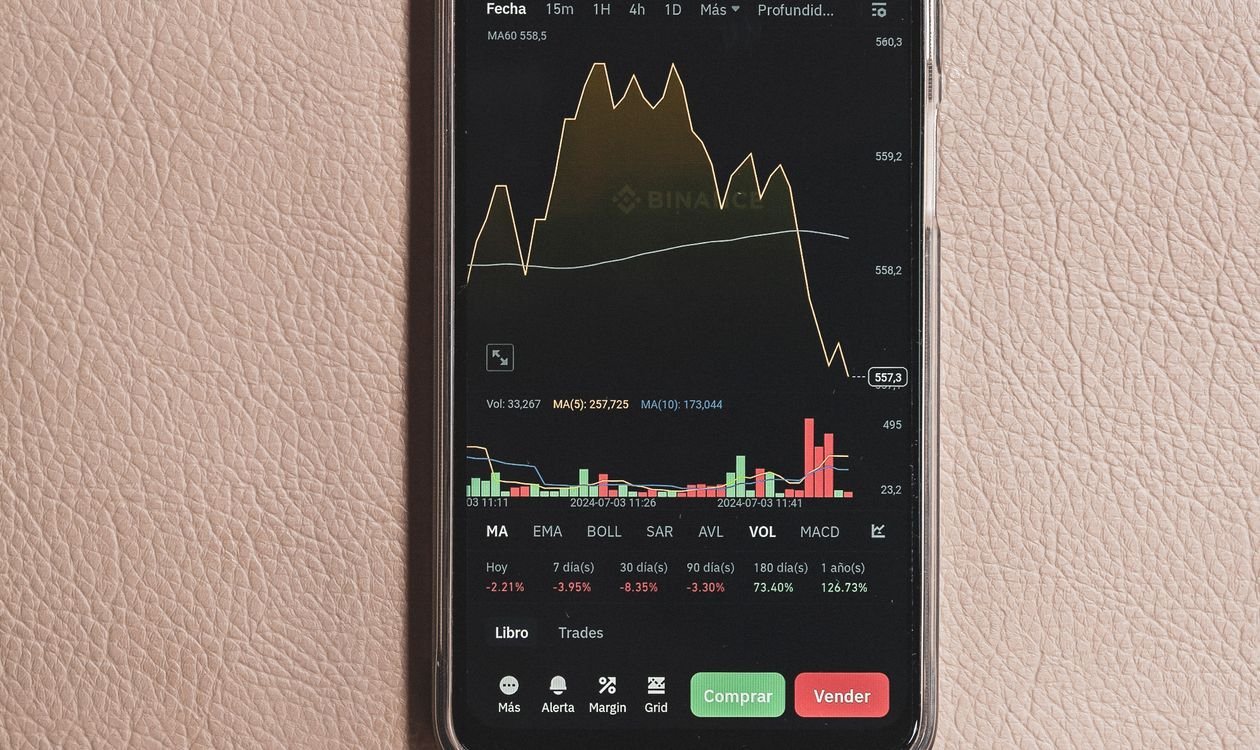
Your phone used to last all day. Now it is asking for a charger by mid-afternoon, even though you have not really changed how you use it. If you want to learn how to make your phone battery last longer, here is the good news: most fast drain is not caused by a dying battery. It is caused by a handful of settings and habits that quietly sip power all day. Fix those, and you can win back hours without buying anything.
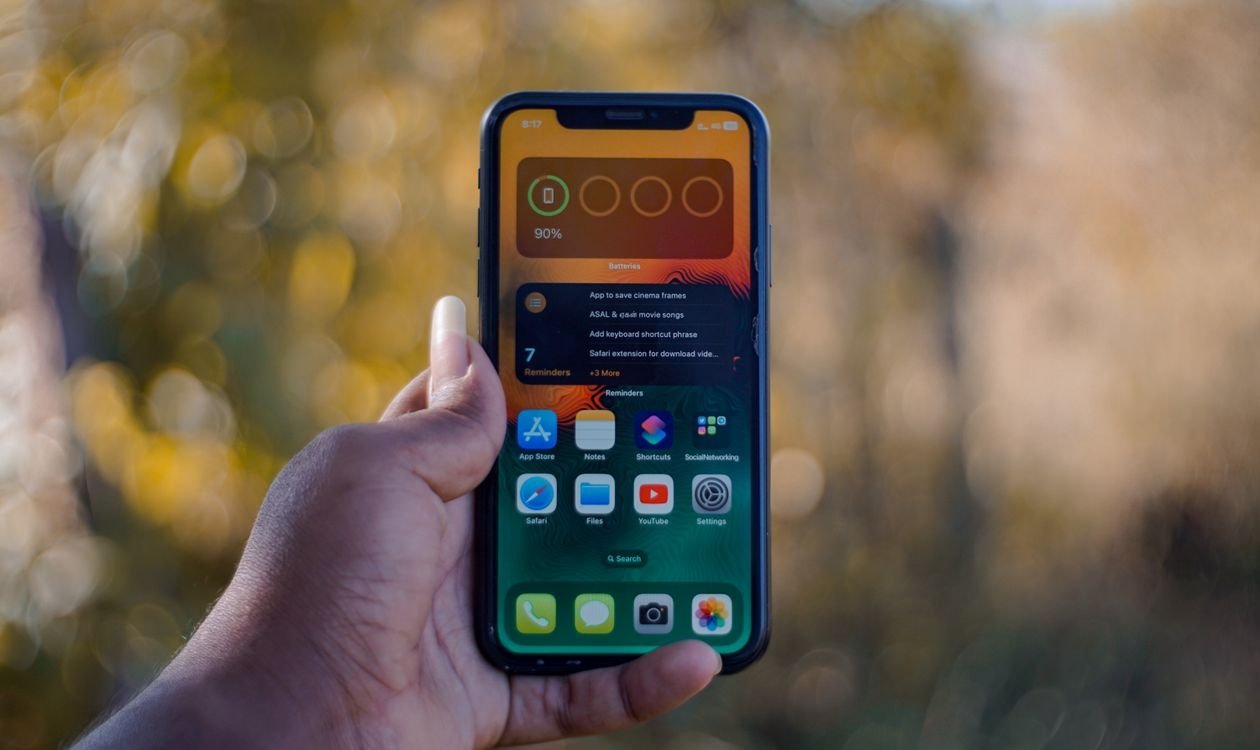
Why Does Your Phone Battery Drain So Fast?
A modern smartphone battery powers a bright screen, several radios (cellular, Wi-Fi, Bluetooth, GPS), a fast processor, and dozens of apps that all want power at once. The biggest drains are usually the screen, a weak cellular signal, apps working in the background, and location services running more often than they need to.
On top of that, lithium-ion batteries slowly wear out. Every full charge cycle — using the equivalent of 100% of the battery, in one go or across several partial charges — takes a tiny slice off its total capacity. That wear is normal, but heat and charging habits decide how fast it happens. The tips below tackle both sides: using less power each day, and slowing the long-term aging.
Start with the Screen: The Biggest Battery User
On almost every phone, the display is the single largest power consumer. A few quick changes here pay off immediately:
- Lower the brightness. Full brightness is rarely necessary indoors, and dropping it pays off immediately.
- Turn on adaptive (auto) brightness. The phone adjusts the screen to the light around you, instead of blasting maximum brightness in a dim room.
- Shorten the screen timeout. Set the display to switch off after 30 seconds of inactivity instead of two minutes — those idle minutes add up.
- Use dark mode on OLED screens. On OLED or AMOLED displays, dark pixels are effectively switched off, so dark themes genuinely save power. On older LCD screens the saving is minimal.
Stop Apps from Working Behind Your Back
Many apps keep refreshing, syncing, and tracking even when you are not looking at them. Open Settings > Battery and check the battery usage list: it tells you exactly which apps have been using the most power, so you can fix the real culprits instead of guessing.
Then turn off Background App Refresh (iPhone) or restrict background battery use (Android) for apps that do not need live updates — shopping apps, games, and social networks rarely need to refresh in your pocket. Keeping your apps tidy helps too; our guide on how to clear cache on iPhone shows a quick maintenance routine worth doing now and then. And if your home screen is full of apps you never open, removing or hiding them means fewer things waking your phone up — our walkthrough on how to hide apps on iPhone covers the options.
Location Services: Useful, but Hungry
GPS is one of the most power-hungry features on your phone, and many apps ask for location access they do not truly need. Review the list under your privacy settings and set apps to “While Using” or “Never” unless they genuinely need your location, like maps or weather. Where the option exists, turn off “precise location” for apps that only need a rough idea of your area.
Use Low Power Mode and Battery Saver
Both iPhone and Android phones include a built-in rescue mode. Low Power Mode on iPhone and Battery Saver on Android reduce background activity, pause automatic downloads and mail fetch, trim visual effects, and slow non-essential tasks. Most people only switch it on when the battery warning appears, but there is no rule against using it earlier — turning it on at 40% before a trip out can stretch the remaining charge considerably. Android users should also enable Adaptive Battery, which learns which apps you rarely use and limits their background activity automatically.
5G, Wi-Fi, and the Weak-Signal Problem
Your phone’s radios work much harder when the signal is poor: the phone keeps boosting power to hold onto the network, and the battery pays for it. A few habits help:
- Prefer Wi-Fi when it is available. A Wi-Fi connection generally uses less power than a cellular one for the same data.
- Use Airplane Mode in dead zones. If you are somewhere with no signal for a while — a basement, a rural road, a flight — stop the phone from searching endlessly.
- Be smart about 5G. 5G is fast, but on some phones it draws more power than 4G/LTE, especially where 5G coverage is patchy. If your battery struggles and 5G is unreliable where you live, switching the phone to LTE can be a worthwhile trade.
Charging Habits That Keep Your Battery Healthy
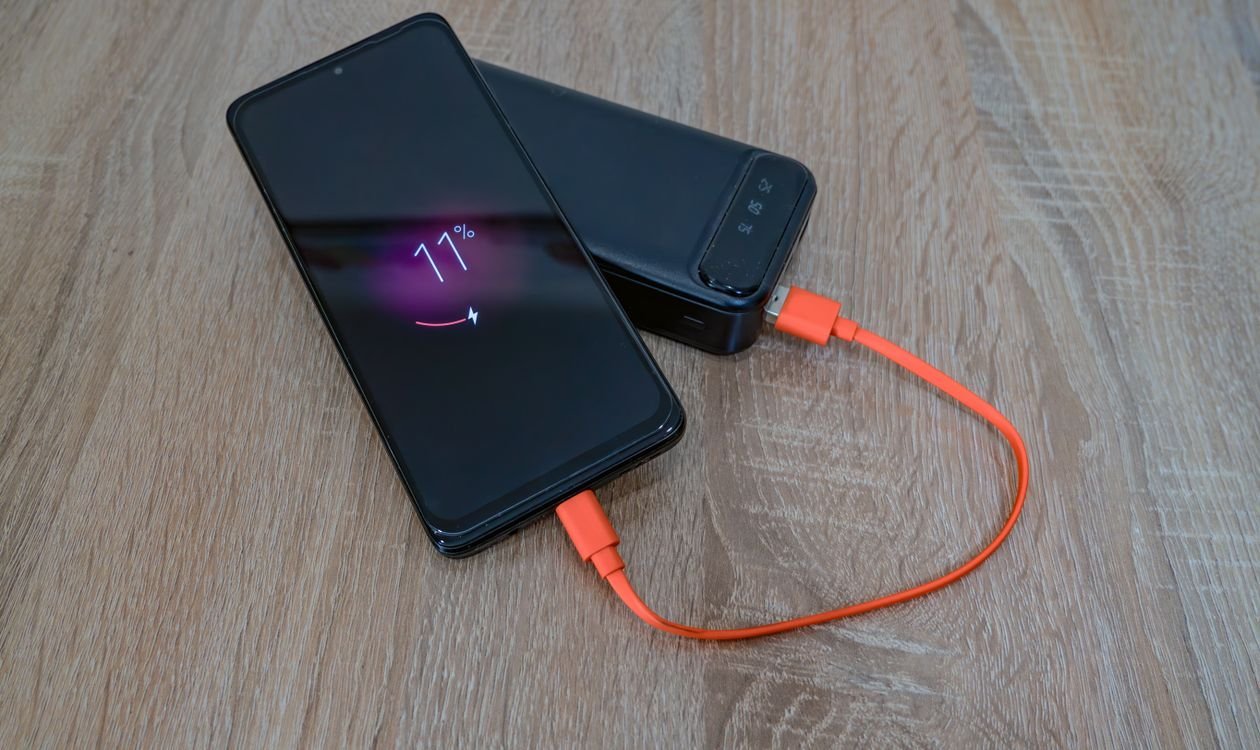
How you charge matters as much as how you use. Lithium-ion batteries are happiest in the middle of their range, so many battery engineers suggest the 20–80% rule as a rough guide: avoid regularly running the phone flat, and do not stress about unplugging before 100% on ordinary days. There is no need to obsess — just avoid making full 0–100% cycles a daily habit.
Modern phones also help automatically. Features like Optimized Battery Charging on iPhone and Adaptive Charging on Pixel phones learn your routine and hold the charge around 80% until shortly before you usually unplug — which is why overnight charging is generally safe on a modern phone: it is not sitting at a stressed 100% for eight hours. For the full picture, Apple’s official battery guidance explains the same principles in depth, and they apply to lithium-ion batteries in general.
Heat: Your Battery’s Worst Enemy
If one thing ages a battery faster than anything else, it is heat. Leaving your phone on a sunny dashboard, charging it under a pillow, or gaming heavily while it fast-charges all push temperatures up and accelerate chemical wear. Keep it out of direct sun, take the case off if it gets warm while charging, and avoid demanding tasks while fast-charging. Cold weather only reduces battery life temporarily — performance returns once the phone warms up.
Check Your Battery Health
Both platforms let you check how much capacity your battery has left. On iPhone, go to Settings > Battery > Battery Health & Charging to see the Maximum Capacity percentage. On Android, look under Settings > Battery, though the wording varies by manufacturer. At 90% or above the battery is in good shape; below roughly 80%, shorter days become hard to fix with settings alone.
When Is It Time to Replace the Battery?
Consider a replacement if maximum capacity is well under 80%, the phone shuts down with charge still showing, or it cannot get through a normal day despite every tip here. If the back is bulging or the screen is lifting, stop using it and get it serviced — a swollen battery is a safety issue. A replacement costs far less than a new phone.
Frequently Asked Questions
Is overnight charging bad for my phone?
On a modern phone, generally no. Phones stop drawing full power at 100%, and optimized charging features hold the battery near 80% until just before your usual wake-up time. Overnight charging becomes a problem mainly when heat is involved — so charge on a hard, clear surface, not in bed.
My phone is at 5% — what should I do right now?
Turn on Low Power Mode or Battery Saver, drop the brightness, and avoid heavy apps like video and games. If you are waiting for an important call, leave the phone alone with the screen off; if not, Airplane Mode squeezes the most from the last few percent. Then charge as soon as you can — deep discharges are best avoided as a habit.
Does closing all my apps save battery?
Not really. Modern operating systems manage background apps efficiently, and force-closing everything can use more power, because apps must reload from scratch next time you open them. It is better to restrict background refresh for the few apps that genuinely overdo it.
Conclusion
Learning how to make your phone battery last longer is mostly about a few sensible defaults: a dimmer, smarter screen, background activity under control, location access only where it is earned, and charging habits that keep the battery in its comfort zone. Apply the settings changes today, check battery health every few months, and your phone should make it to bedtime — with a battery that stays healthier for years.

1 Comment
Pingback: How to Make Your Wi-Fi Faster at Home: 10 Simple Fixes - Nerd Bot